 Docs
DocsShopify
Integrate Cost+ with your Shopify store using the official Shopify App

Integrate Cost+ as a payment method in your Shopify store. The official Cost+ Payments app is available for quick installation directly from the Shopify App Store.
Prerequisites
- Active Cost+ merchant account
- Shopify store on any paid plan
- Admin access to your Shopify store
1. Install the Cost+ Payments App
Go to the Cost+ Payments App Page on the Shopify App Store and click Install.
Shopify will guide you through the necessary steps to add the app to your store securely.
2. Enter Your Merchant Credentials
Log into the Merchant Portal and navigate to Websites, then click on the website you want to connect. Click on Integration where you will find your Merchant ID and API key.
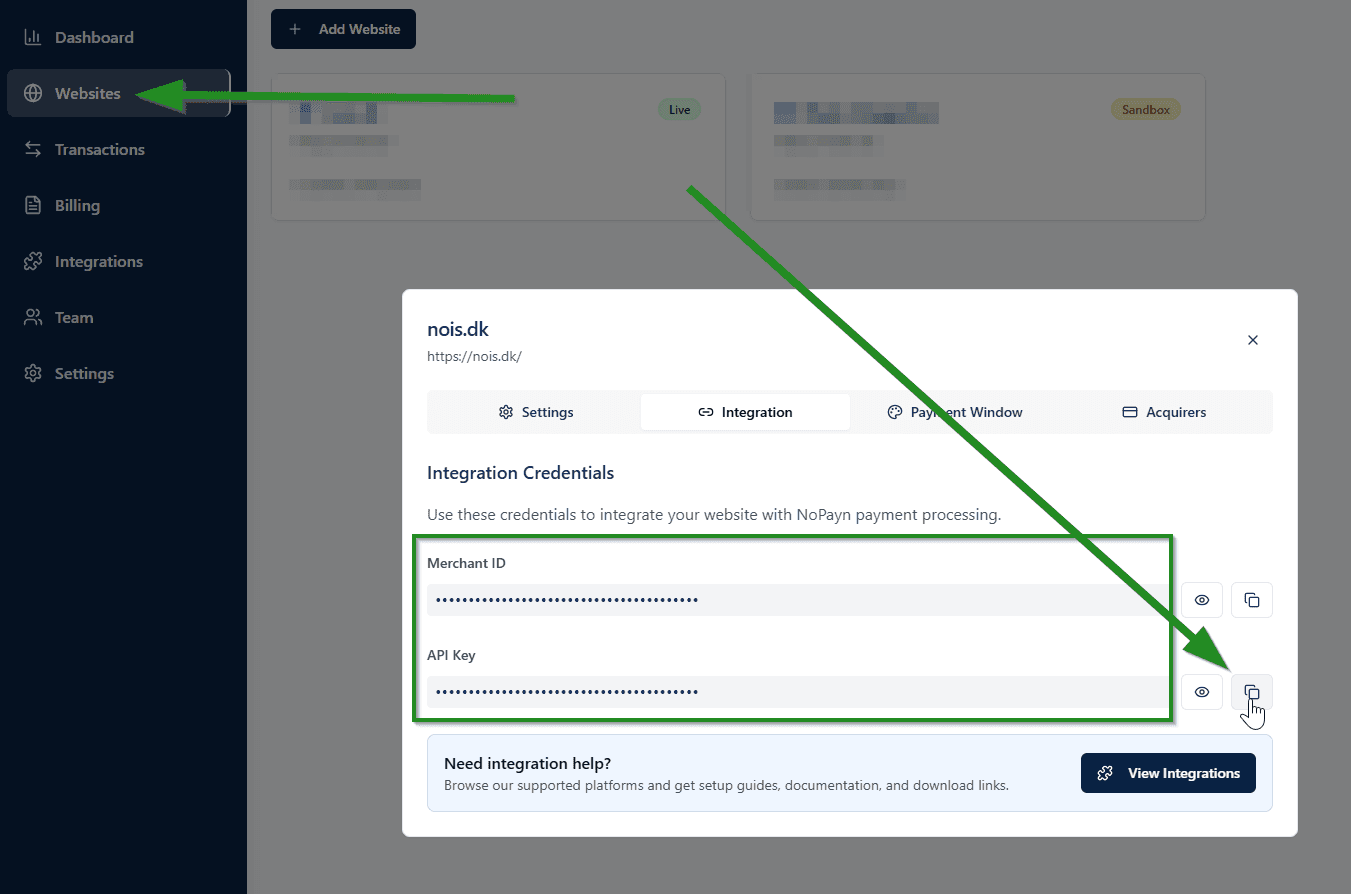
Enter your Merchant ID and API Key when prompted inside the Cost+ app settings.
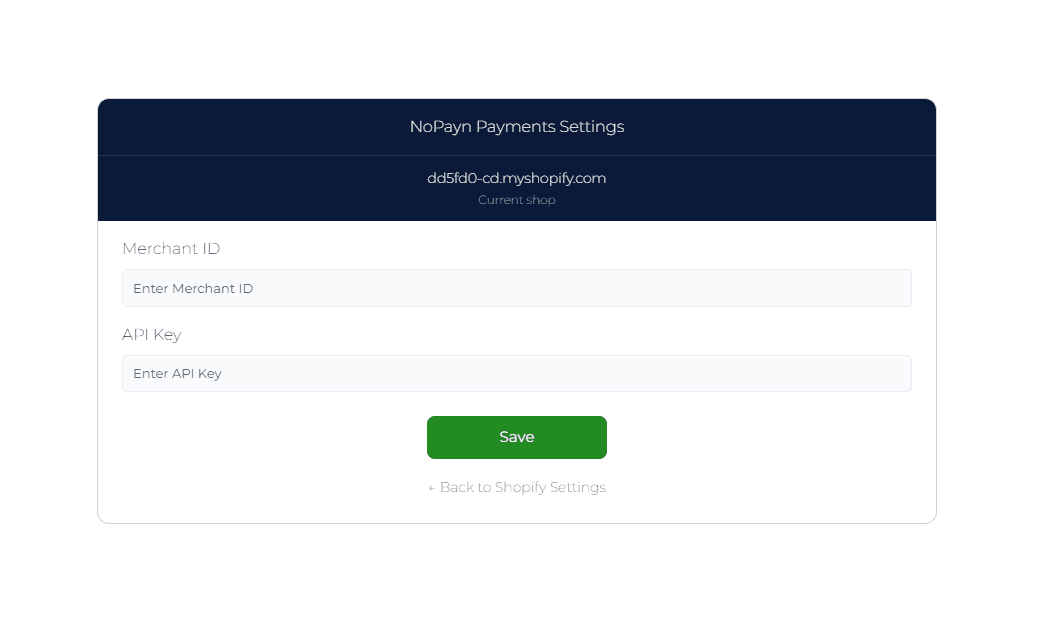
Unlike other plugins, Shopify requires both a Merchant ID and an API Key. Make sure to enter both values.
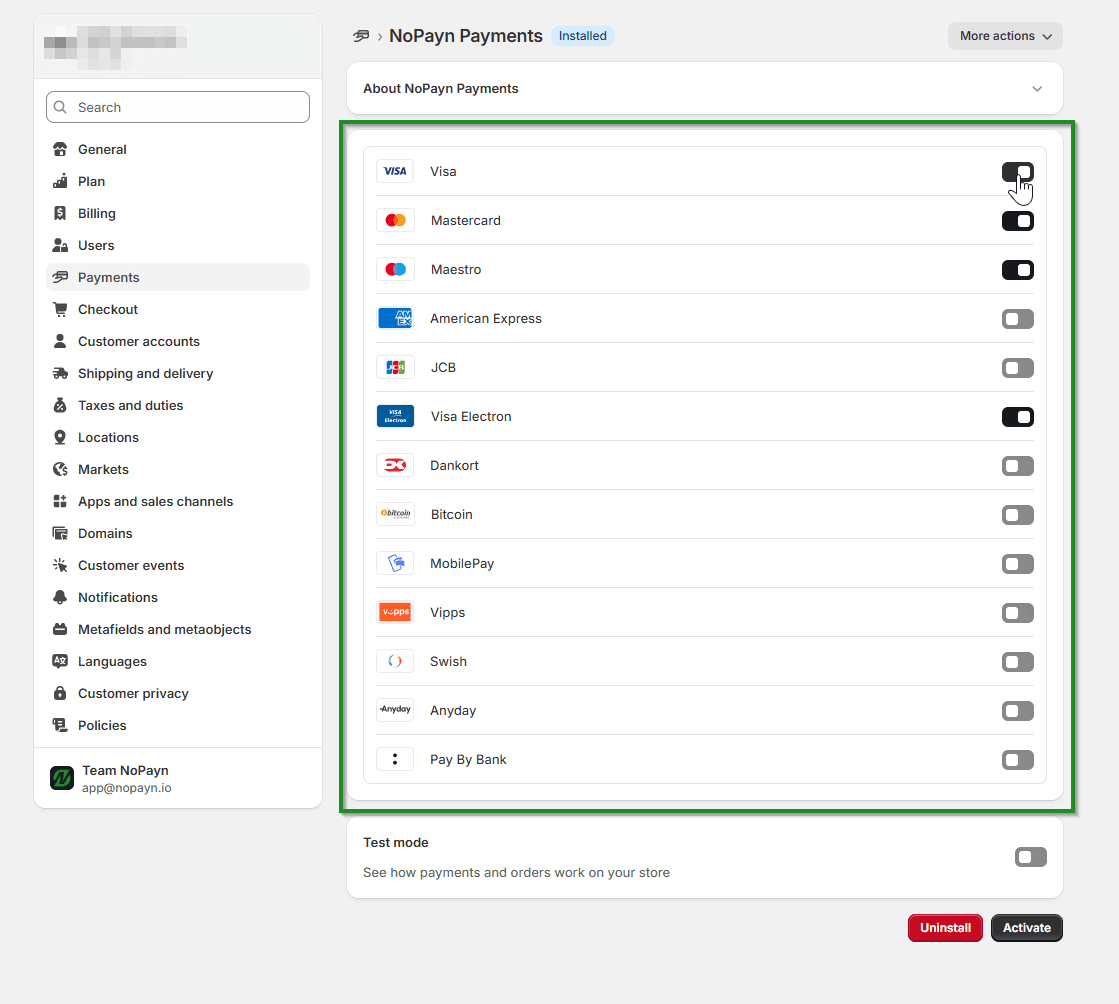
3. Customize Payment Display
Select which payment icons (e.g. Visa, Mastercard, Apple Pay, Google Pay) you'd like to show on your checkout. This can help increase customer trust and improve conversions.
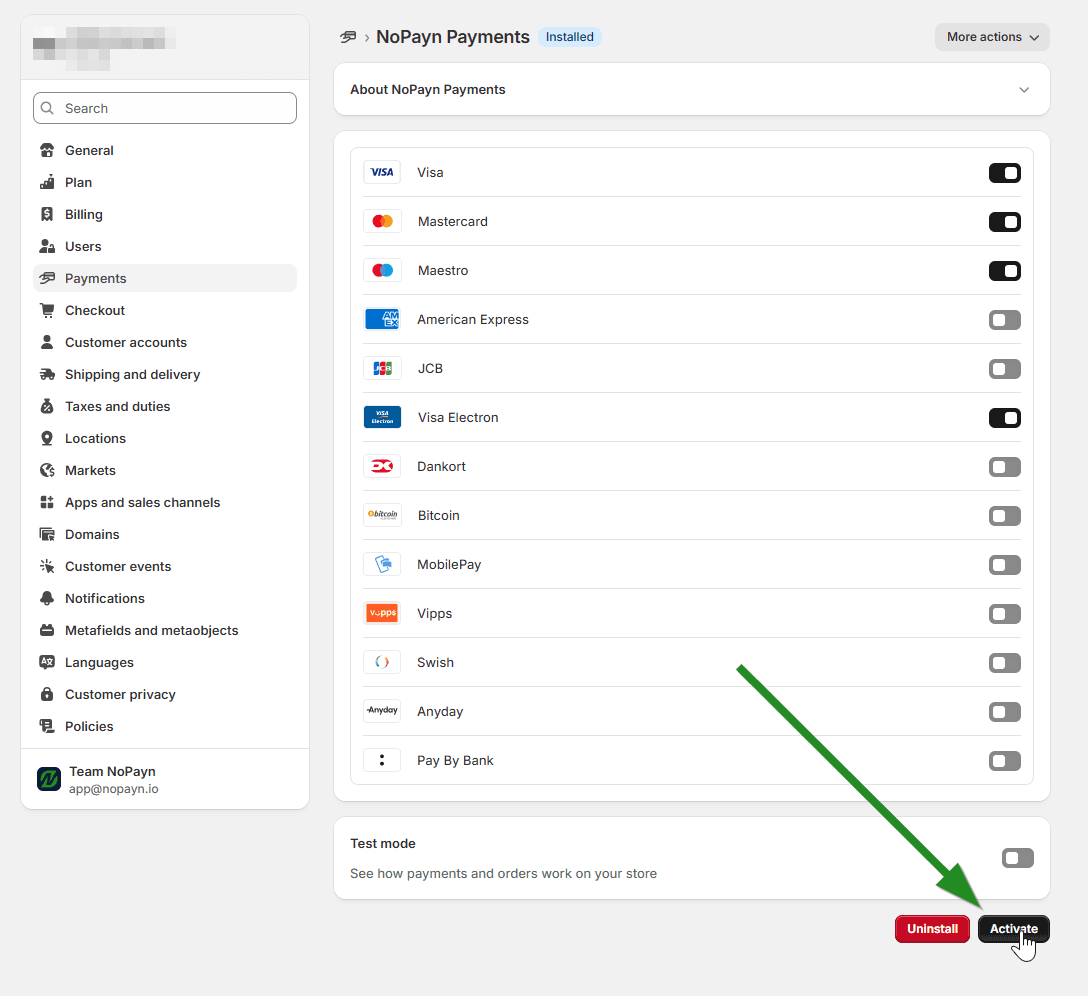
4. Activate Cost+ Payments
Click the Activate button to enable Cost+ Payments for your store.
5. Test and Launch
Make a few test purchases to ensure everything works smoothly. We suggest testing both successful and failed payments to confirm all scenarios are handled.
Optimize Your Checkout (Optional)
We recommend installing the Checkout Rules App to reorder and rename your payment methods for a more intuitive shopper experience.
Suggested settings:
- Rename Cost+ to: “Credit / Debit Card”
- Sort it to Position 1 to maximize visibility
Checkout Rules currently applies one replacement name across all checkout languages. If your store is multilingual, use the label in your primary checkout language.
A cleaner, more relevant checkout experience can help reduce cart abandonment and increase trust.
Support
Need help? Reach out to our support team at support@costplus.io.